
 Looking for tips on how to fix your Thermal Printer? A lot of the time the printer is not actually broken, but instead the Thermal Paper is being loaded incorrectly or the wrong paper is being used. Follow these three simple steps to get your printer back on track. If you have an Epson TM-T88, check out our detailed troubleshooting video below.
Tips to Ensure Your Thermal Receipt Printer is Working Properly
Step 1: Verify the Paper
First, make sure you’re using thermal-coated paper. Scratch the paper’s surface with a coin or nail. If it’s a Thermal Paper Roll, you’ll see a black mark where you scratched.
Step 2: Load the Paper Correctly
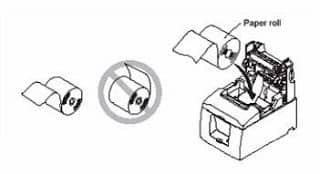
Ensure the thermal paper is loaded properly. Follow the above diagram for correct paper loading: Place the roll with the paper feeding under, not over. Drop it in, pull out some excess paper, close the cover, and try printing again.
Step 3: Check the Roll Size
Incorrect roll or core size can cause problems. If you’re unsure of the correct size for your printer, use our POS Supply Finder or call us at 888-431-5800.
Still Not Working? Try Cleaning Your Printer
Your thermal printer might need a good cleaning. Use Thermal Printer Cleaning Cards with every paper roll change to remove residue and other contaminants from thermal print heads, paper guides, and paper paths. This helps prevent paper jams and misprints.
If you’re still having trouble, consult your printer’s manual or visit the manufacturer’s website for more info. Or, give us a call at 888-431-5800, and our Point-of-Sale Supply Experts will be happy to help!
Need Supplies?
Watch: Epson TM-T88 Troubleshooting Video
Why Choose Our Products?
- High-Quality Thermal Paper: Ensures smooth and reliable printing.
- Thermal Printer Cleaning Cards: Extend the life of your printer.
- Expert Support: Our knowledgeable team is always ready to help.
Stay Updated
Subscribe to our email blasts for the latest tips and special offers: Subscribe
Additional Resources:
Thermal Paper: Selecting the Right One For Your Application
Thermal Paper: Three Places to Never Store Rolls
Thermal Paper: Is It Recyclable?
Thermal Paper: Is there BPA in Thermal Receipt Paper?
Thermal Paper: What is Phenol-Free Thermal Paper?
Thermal Paper: Why Are My Thermal Receipts Not Printing Clearly?